

Picture this: you’re lounging on the couch, ready to catch up with a friend, when your iPhone decides to play hard to get. Instead of ringing, it flashes the dreaded “user busy” message. What gives? Is your phone secretly plotting against your social life or just having a bad day?
This frustrating hiccup can leave anyone scratching their head. Whether it’s a glitch in the matrix or an unintentional call-blocking feature, understanding why your iPhone is acting like a moody teenager is key to restoring your communication flow. Dive into the quirks of your device and discover how to turn that “user busy” message into an “I’m ready to chat!” signal.
Common Reasons for “User Busy” Message
Several factors can trigger the “user busy” message on an iPhone. Understanding these common causes can help users troubleshoot and resolve their call issues.
Network Issues
Weak signals or network congestion often cause call interruptions. Users may experience this when in rural areas or inside buildings where reception struggles. A temporary network outage can also lead to receiving this frustrating message. Ensuring the iPhone has a strong connection to the cellular network can often resolve this issue. Checking with the service provider can identify if any outages impact service.
Do Not Disturb Mode
The Do Not Disturb feature silences incoming calls, sending them directly to voicemail. Users may enable this mode to avoid distractions, causing calls to appear as busy. Reviewing the settings can clarify if this option is active. Disabling Do Not Disturb allows calls to come through as normal, restoring the ability to receive calls without interruptions. This feature can be quickly toggled on the iPhone’s settings menu.
Settings to Check
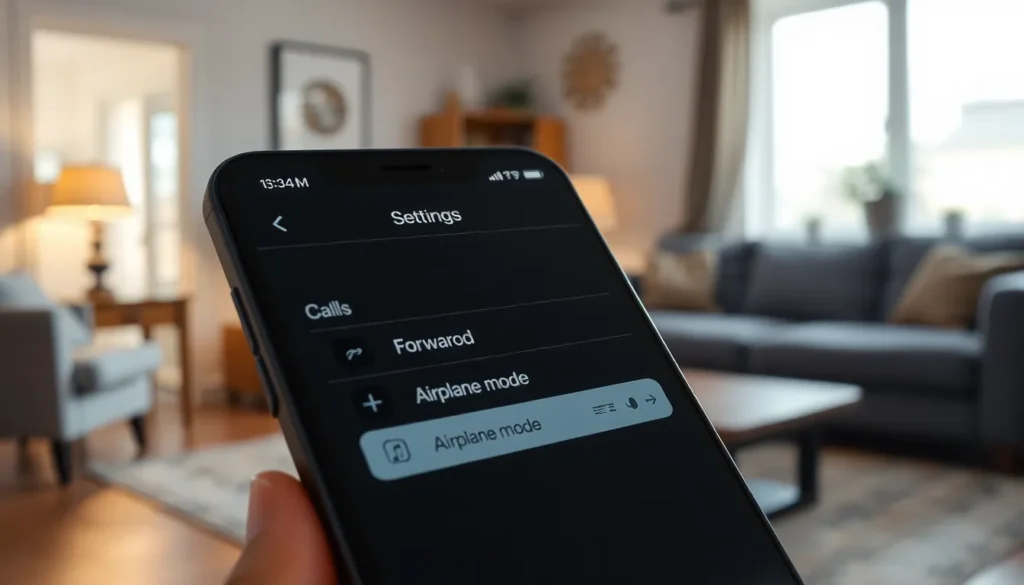
Several settings might cause the “user busy” message when receiving calls on an iPhone. Users can quickly troubleshoot the issue by examining specific features.
Call Forwarding Options
Check call forwarding settings first. Call forwarding can redirect incoming calls, leading to the “user busy” notification. To check this, navigate to Settings, then Phone, and look for Call Forwarding. If it’s turned on, turn it off or modify its settings based on preferences. Remember that if forwarding directs calls to another number, that may also lead to the busy message. Verifying this option helps ensure calls reach the intended destination.
Airplane Mode Settings
Consider the Airplane Mode option next. When this mode activates, it disables all wireless communications, resulting in missed calls. To check this setting, swipe down from the top-right corner to access Control Center and locate the airplane icon. If it’s highlighted, tap it to disable Airplane Mode. After turning it off, the device should resume normal call functionalities. Ensuring Airplane Mode is off prevents missed connections and enhances call reception.
Troubleshooting Steps
Addressing the “user busy” message involves several troubleshooting steps. Users can follow these actions to help resolve the issue.
Restart Your iPhone
Restarting the iPhone often resolves many temporary glitches. To do this, press and hold the side button until the power off slider appears. After sliding it to turn off the phone, wait approximately 30 seconds before restarting by holding the side button again. This simple action can refresh the device’s operating system, eliminating minor issues that may cause call reception problems.
Update Software
Keeping the iPhone’s software updated ensures optimal performance. Users should check for updates by navigating to Settings, then selecting General and Software Update. Installing any available updates can fix bugs and improve overall functionality. Regular software updates not only enhance device security but also address potential issues that may contribute to the “user busy” notification when receiving calls.
When to Contact Your Carrier
Contacting your carrier may become necessary if technical issues persist despite troubleshooting efforts. Persistent problems with the “user busy” message indicate deeper network complications not resolvable through basic settings adjustments.
Persistent Issues
Repeatedly encountering the “user busy” message points to possible service interruptions. Users experiencing this should gather details such as the time of occurrences, frequency, and locations where the issue arises. These insights help inform the carrier about the problem. Network outages or maintenance in the area could contribute to call failures. If no apparent resolution exists after follow-up, escalating the issue might be required. Our ability to communicate relies heavily on a stable connection, and persistent issues warrant professional assistance.
Understanding Call Blocking
Call blocking features could lead to unintentional silencing of incoming calls. Users may have activated call blocking for specific numbers without realizing it. Checking the blocked contacts list within settings helps to clarify this potential issue. Some apps also provide call screening that may inadvertently silence calls. Review these apps to understand their impact on incoming communications. If call blocking isn’t an intentional choice, adjusting settings can restore normalcy to incoming call behavior. Recognizing and modifying these features ensures more effective communication experiences on the iPhone.
Experiencing the “user busy” message on an iPhone can be frustrating and confusing. By understanding the various factors that contribute to this issue users can take proactive steps to resolve it. Checking network connections and adjusting settings like Do Not Disturb and call forwarding are essential first steps.
If problems persist despite troubleshooting it’s wise to contact the carrier to investigate potential network issues. With a little patience and the right approach users can restore smooth communication and ensure they never miss an important call again.


